

System Guardian
Kynos
Kynos upgrades your Windows lock screen with built-in security monitoring. If someone enters the wrong PIN, Kynos silently takes a photo and emails it to you, along with device details so you know exactly what happened. Unlock instantly with Windows Hello or your PIN.
Unlike the standard Windows lock, Kynos keeps your running apps and remote desktop sessions alive in the background while your screen stays protected.

Kynos
System Guardian
Photo capture on failed unlock
See who was at your keyboard, not just that something happened, but who did it.
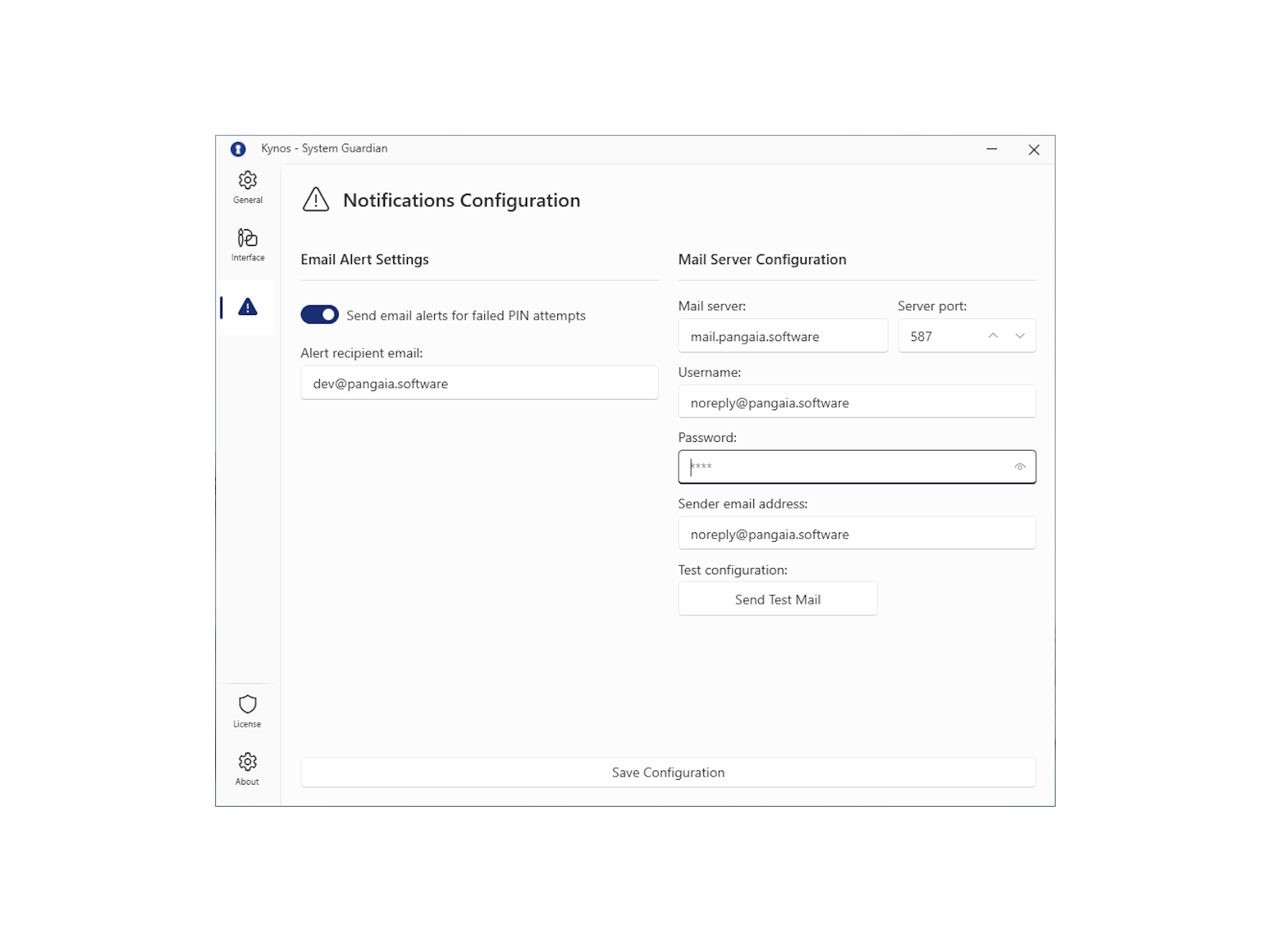
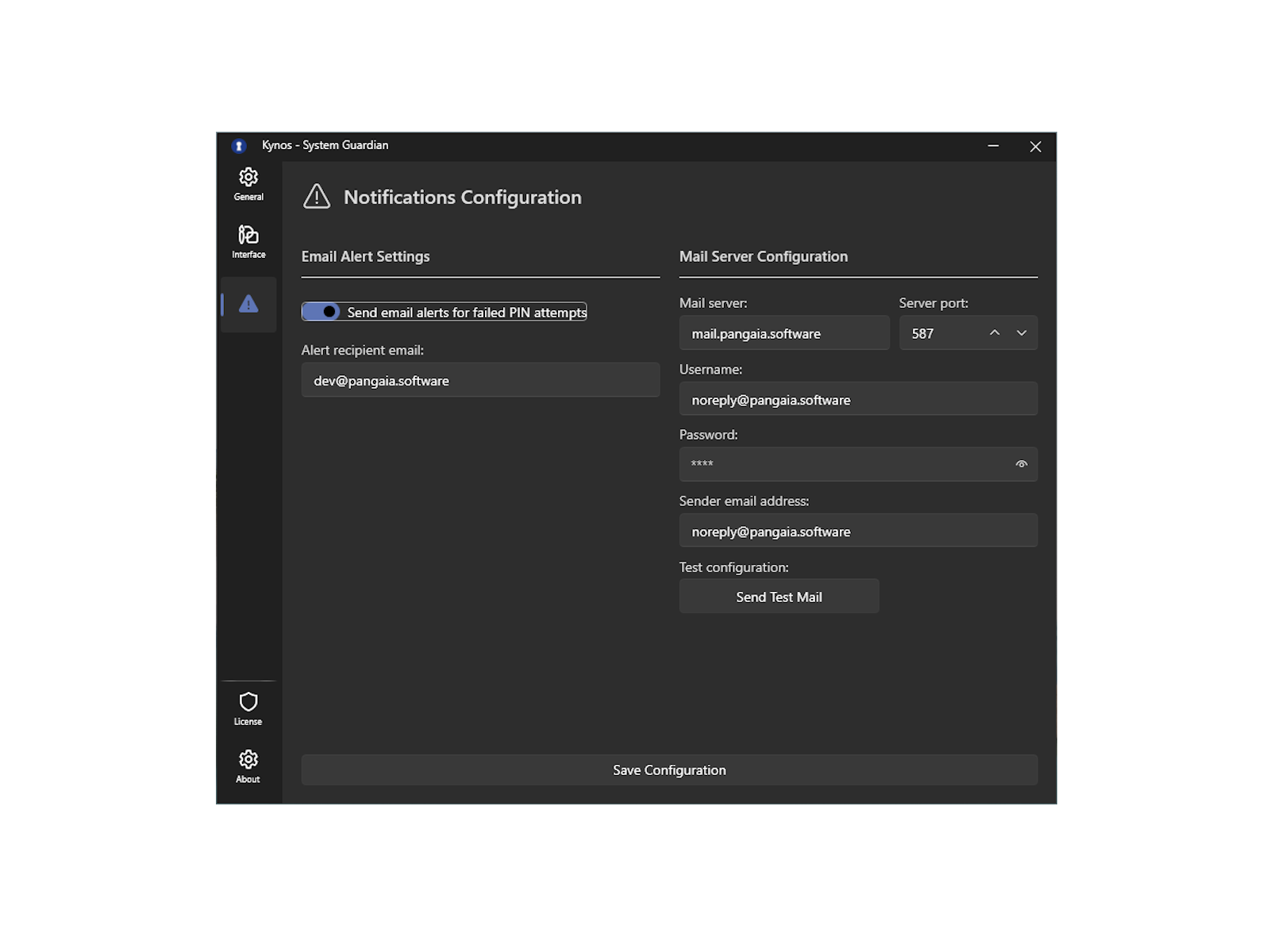
Email alerts with full context
Get a complete picture of what happened even when you're away from your desk.
Windows Hello unlock
Fast, convenient unlocking without giving up the security monitoring.
Why it matters
The default Windows lock screen tells you nothing about what happened while you were away. Kynos changes that: if someone tries to unlock your PC with the wrong PIN, you get a photo and a notification straight to your inbox.
Key features
What Kynos does best
The most important things Kynos brings to your desktop.
Photo capture on failed unlock
Silently takes a webcam photo whenever someone enters the wrong PIN. See who was at your keyboard, not just that something happened, but who did it.
Email alerts with full context
Sends you an email with the captured photo, your PC's location, and device details. Get a complete picture of what happened even when you're away from your desk.
Windows Hello unlock
Unlock with your fingerprint, face, or iris, whichever Windows Hello method you already use. Fast, convenient unlocking without giving up the security monitoring.
Bypass protection
Prevents the lock screen from being closed with keyboard shortcuts like ALT+F4. The lock screen stays locked. Common workarounds won't dismiss it.
Lock with a shortcut or automation
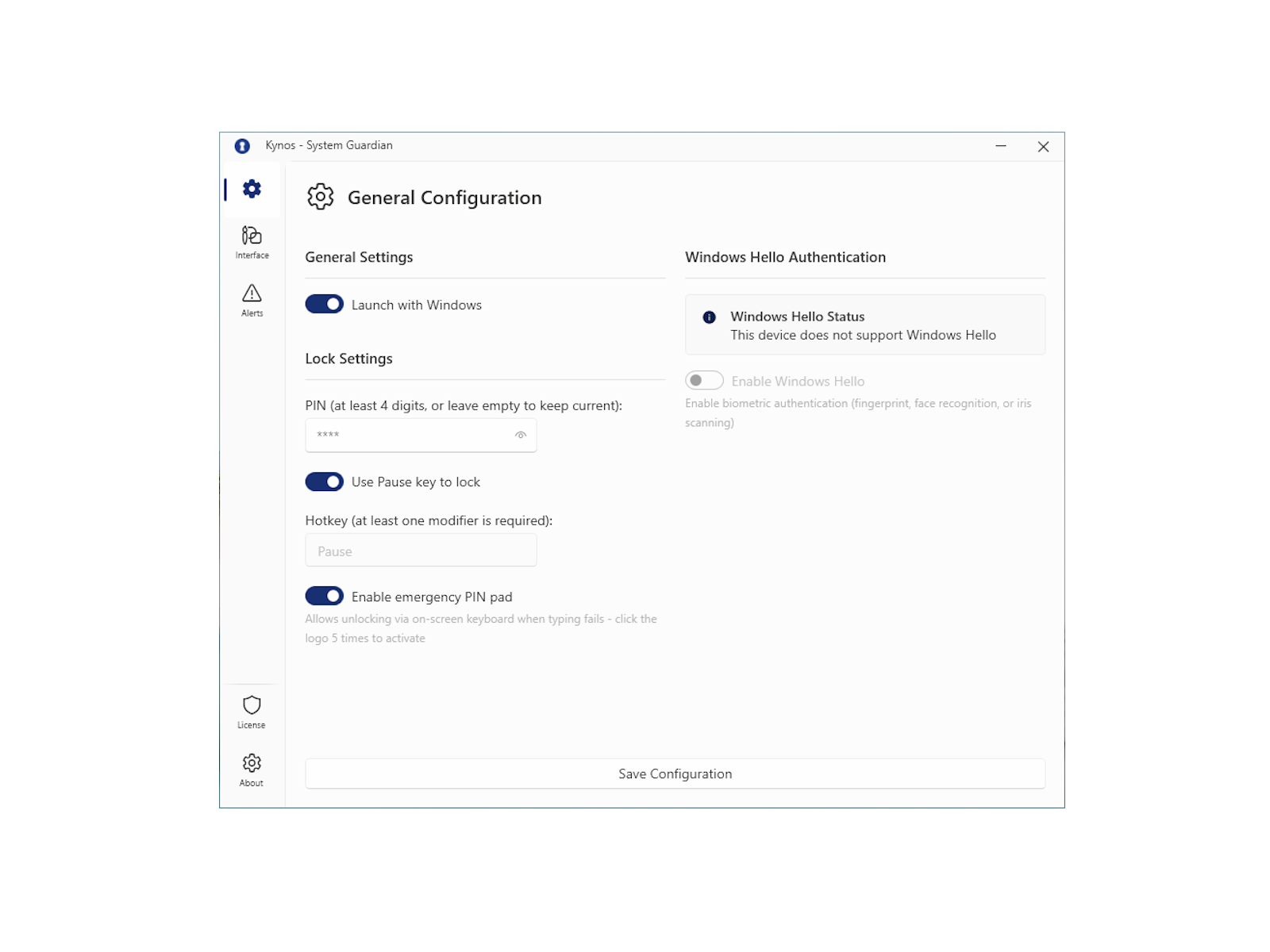
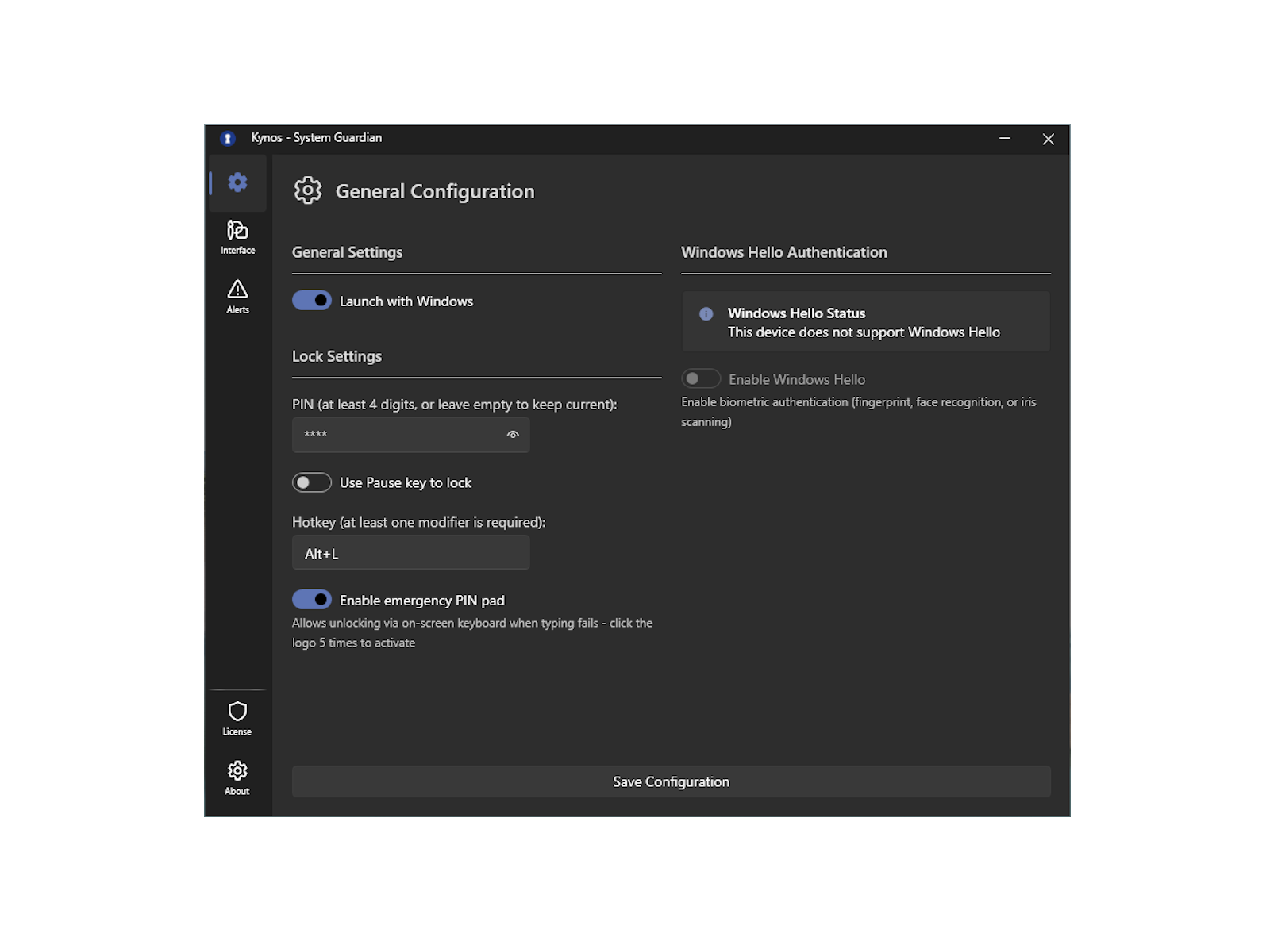
Lock your screen instantly with a keyboard shortcut, the system tray, or from scripts and automations. Lock the way that suits you: a quick key combo, a tray click, or an automated trigger.
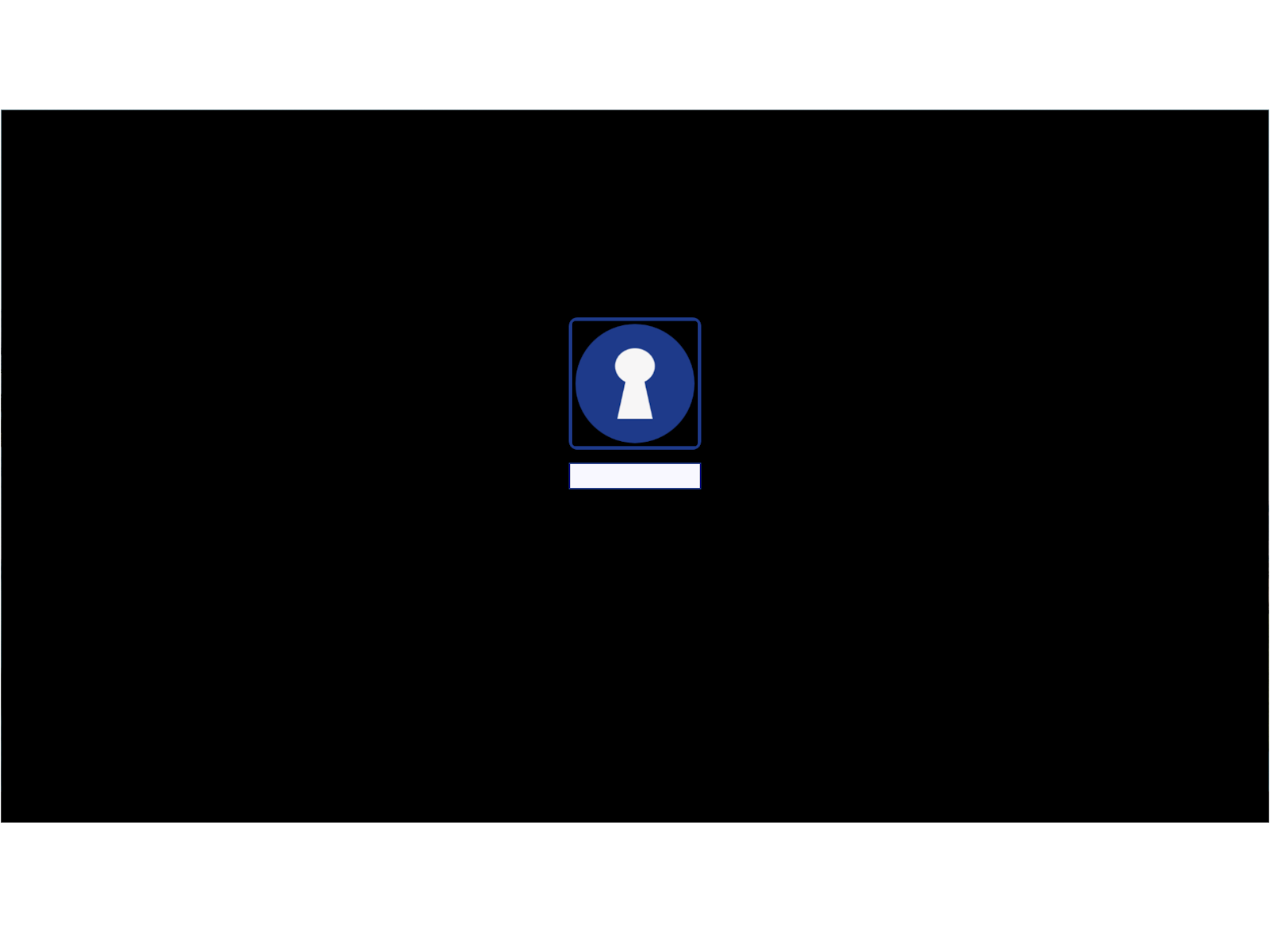
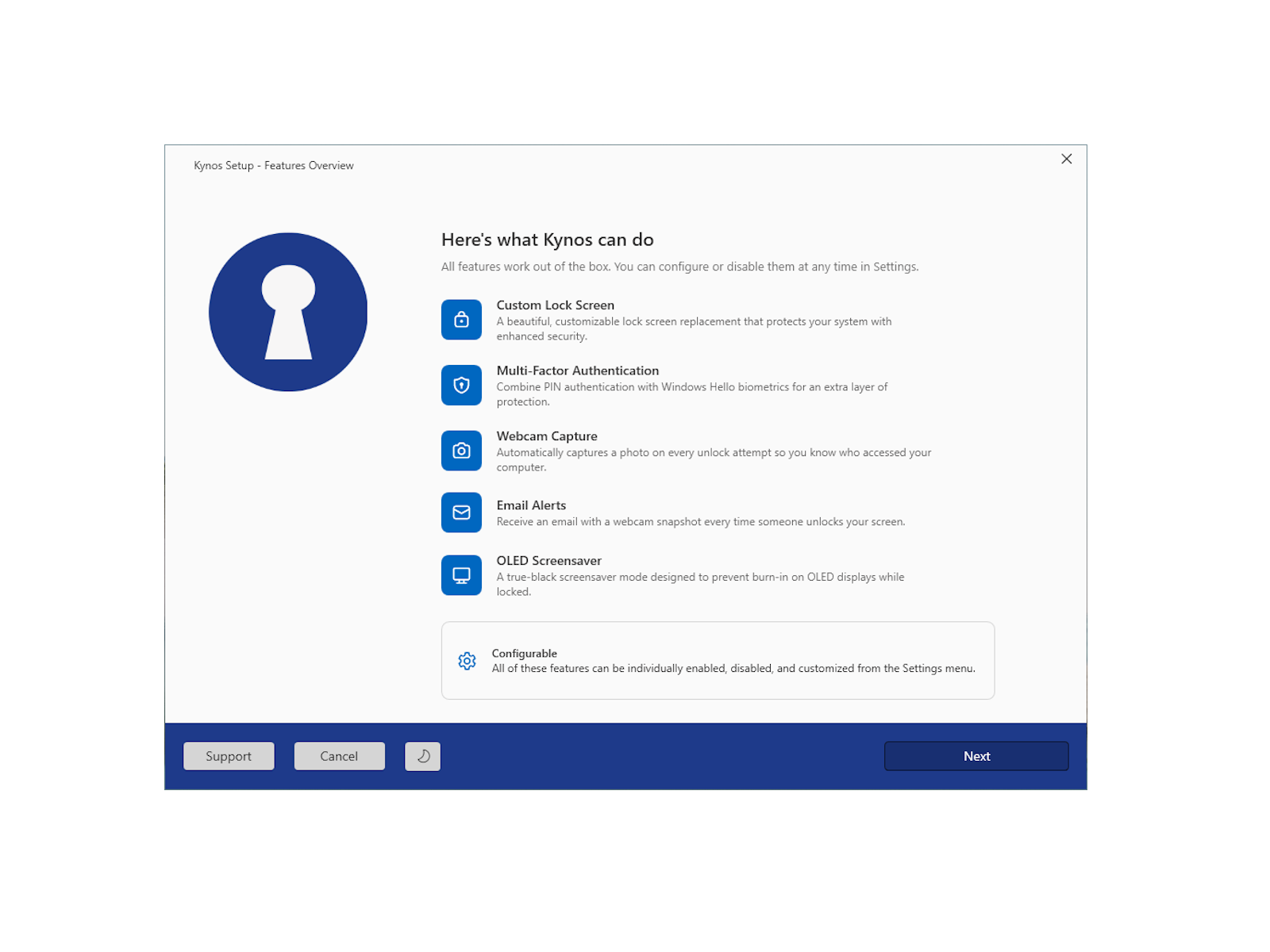
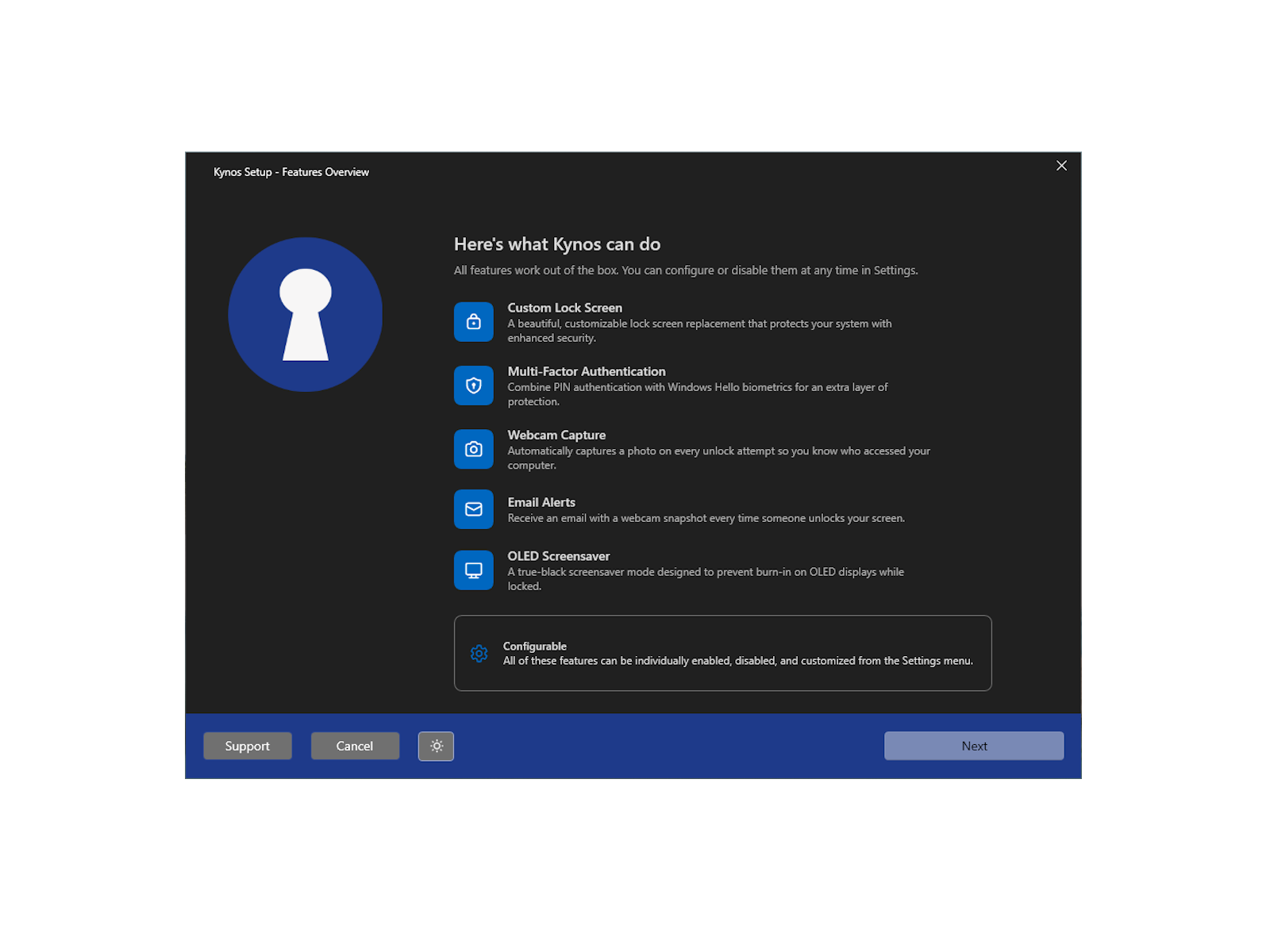
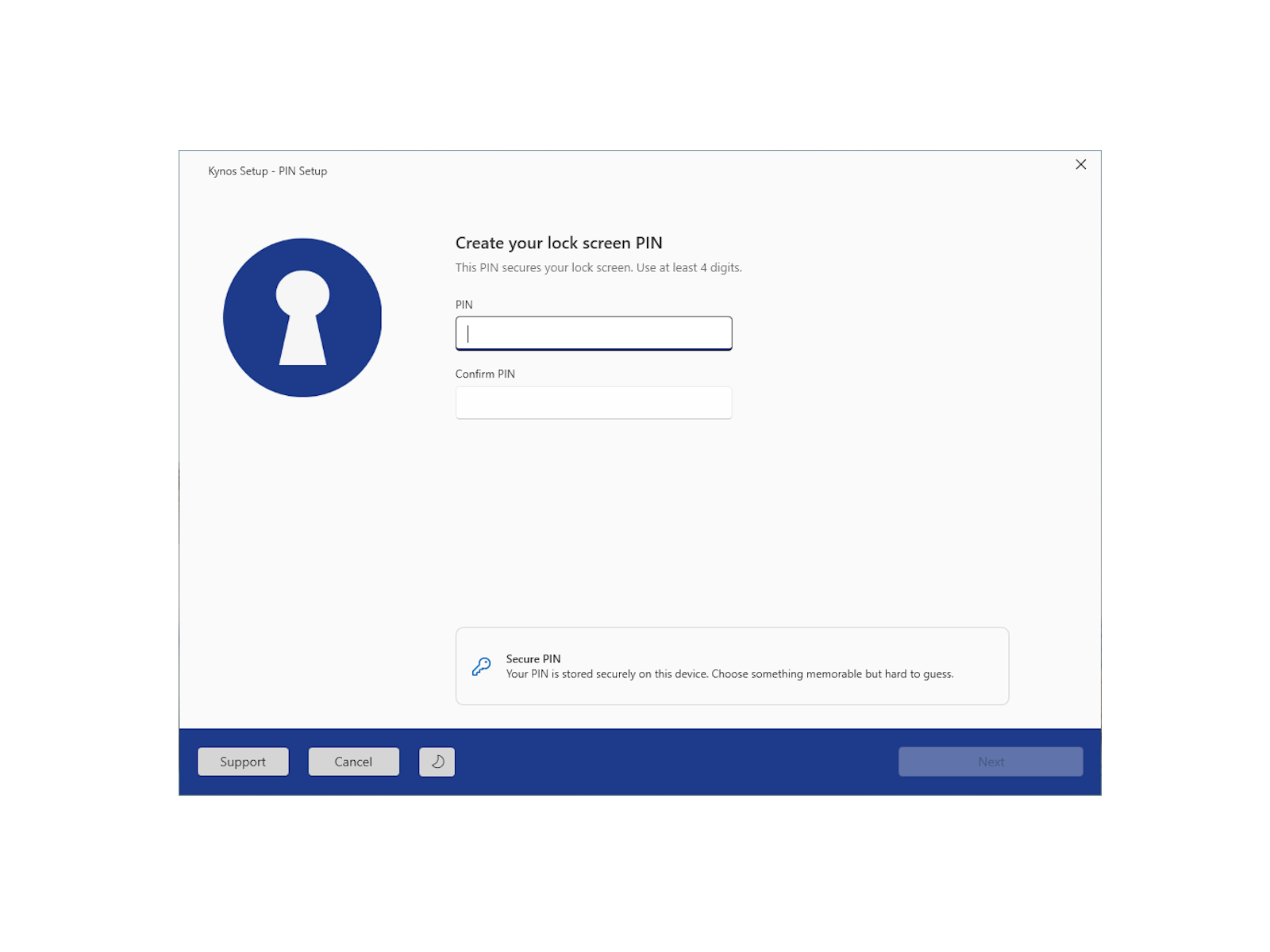
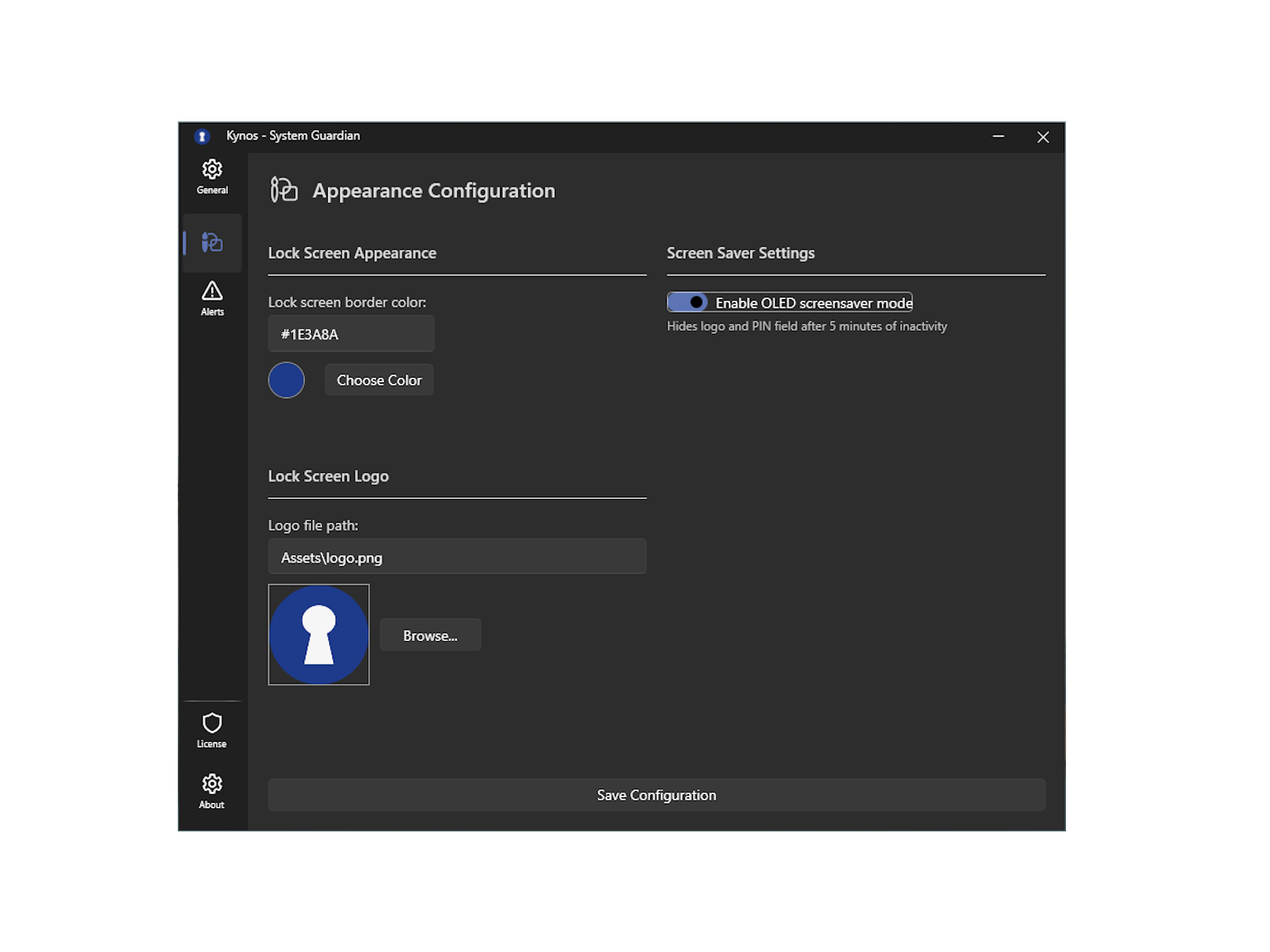
See it in action
What Kynos looks like
How it works
Get up and running in minutes.
Set up once
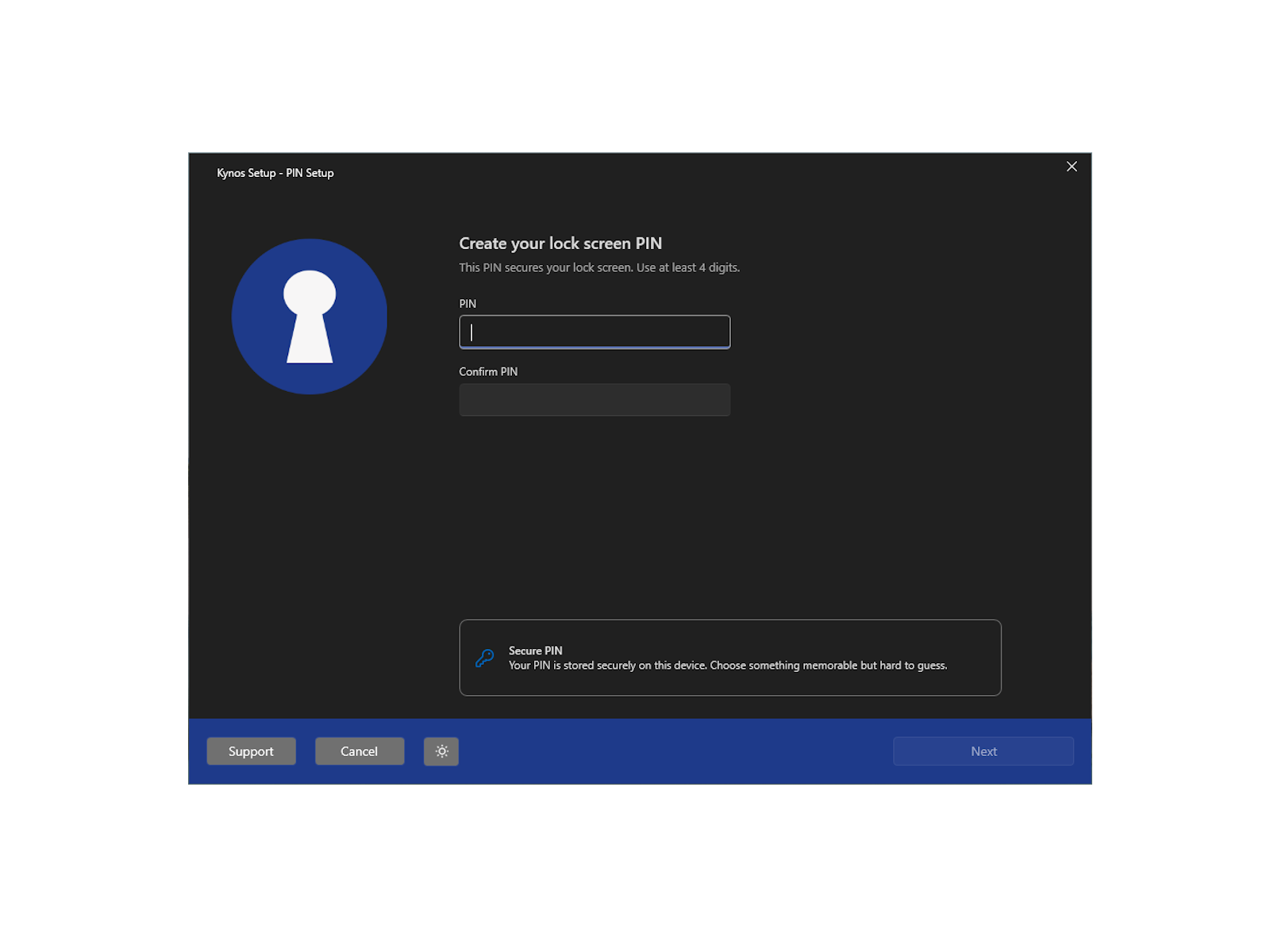
The setup wizard walks you through creating a PIN and optionally setting up email alerts. It takes just a few minutes.
Lock your screen
Press Alt+L, click the tray icon, or let an automation trigger the lock, whatever suits you.
Get alerted on failed attempts
If someone enters the wrong PIN, Kynos takes a photo and sends it to your inbox along with device details.
Unlock and keep working
Use Windows Hello or your PIN to unlock. Your apps and sessions pick up right where you left them.
Technical highlights
Encrypted PIN storage
Your PIN is AES-encrypted and the encryption key is stored in Windows Credential Manager, never in a plain settings file.
Photos never saved to disk
Webcam captures exist only in memory and are attached directly to alert emails. Nothing is written to your hard drive.
Keeps your apps running
Kynos locks the screen as a desktop overlay, so background processes and Remote Desktop sessions stay connected while you're away.
Lightweight and efficient
Kynos uses minimal resources when idle: no background polling or constant activity, just quiet readiness until you lock.
FAQ
Common questions about Kynos
Does Kynos work on Windows 10?
Yes. It supports Windows 10 (version 1809 and later) and Windows 11.
Do I need to set up Windows Hello first?
Yes. Kynos uses whatever fingerprint, face, or iris method you've already enrolled in Windows Settings.
Are the webcam photos saved on my PC?
No. Photos are only held in memory long enough to attach them to the alert email. Nothing is written to disk.
Does Kynos replace the Windows login screen at boot?
No. Kynos is a lock screen that runs on top of your desktop after you've signed in. It doesn't change the Windows boot or login process.
Will my apps keep running while Kynos is locked?
Yes. Background applications, downloads, and Remote Desktop sessions all stay active while the lock screen is up.
What if I forget my PIN?
There's currently no self-service recovery. If Windows Hello isn't available either, you'll need to reset and set up Kynos again. Keep your PIN somewhere safe.
Ready to keep exploring Kynos?
Jump into the detailed feature breakdown, documentation, or download information depending on what stage of evaluation you are in.